Frequently Asked Questions
Question 1
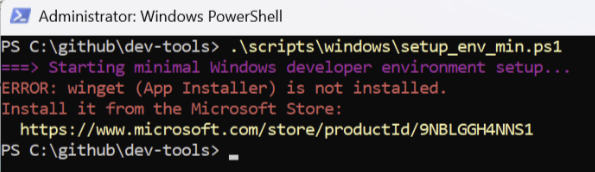
ERROR: winget (App Installer) is not installed (Screenshot below).
Solution
There are two common causes for this issue. Follow the steps for the scenario that matches your environment.
Scenario 1: App Installer missing or not on PATH
-
Confirm that the App Installer (winget) is available on your PATH. In PowerShell run:
echo $env:PATHYou should see a path similar to:
C:\Users\<yourname>\AppData\Local\Microsoft\WindowsApps -
If the WindowsApps path is missing, add it to your user PATH. In PowerShell run (note the quotes):
setx PATH "${env:PATH};C:\Users\$env:USERNAME\AppData\Local\Microsoft\WindowsApps"After running
setx, close and re-open PowerShell for the change to take effect. -
Verify winget is available:
winget --version -
If winget is still not available, install or update the App Installer from Microsoft and then re-run the script: https://learn.microsoft.com/windows/package-manager/winget/
Scenario 2: Corporate-managed devices / Microsoft Managed Desktop
On some corporate-managed devices the App Installer may only be available at the user profile level or may be restricted by IT policies. If you see the error in this environment:
- Run PowerShell as your normal user (not elevated) so the user-level App Installer can be discovered.
- When the script attempts to install applications, an elevation prompt or helpdesk intervention may be required. Have IT or helpdesk provide administrator credentials when prompted.
- In some environments each application install may require separate approval or credentials. If installations fail due to policy restrictions, contact your IT support team and request App Installer/winget be made available or for the required packages to be installed.
Additional notes
- After installing or updating the App Installer, restart PowerShell before re-running
setup_envscripts so the updated PATH is picked up. - If you continue to have problems, capture the exact error output and the result of
echo $env:PATHand open an issue (or provide the logs here) so we can help diagnose further.
Question 2
How does a successful installation log looks like?
Log
Installation of some tools was skipped because they are already present on the user’s machine. For example, Git: git already available. Skipping Git for Windows..
```powershell
PS C:\Users\UserHomeDir> cd \github\dev-tools
PS C:\github\dev-tools> .\scripts\windows\setup_env_min.ps1
===> Starting minimal Windows developer environment setup…
===> setup_env_min.ps1 - Minimal Windows bootstrap
===> Accepted switches: -DryRun (preview), -Interactive (installer UX), -Silent (no prompts), -Help (this message).
===> Default behavior: Silent installs (no prompts).
===> Mode: Silent (default).
===> PATH (Session) entries (one per line):
01: C:\Program Files\Microsoft\jdk-17.0.18.8-hotspot\bin
02: C:\Program Files (x86)\Microsoft SDKs\Azure\CLI2\wbin
03: C:\WINDOWS\system32
04: C:\WINDOWS
05: C:\WINDOWS\System32\Wbem
06: C:\WINDOWS\System32\WindowsPowerShell\v1.0
07: C:\WINDOWS\System32\OpenSSH
08: C:\Program Files\dotnet
09: C:\Program Files (x86)\Microsoft SQL Server\160\DTS\Binn
10: C:\Users\UserHomeDir\AppData\Local\Microsoft\WindowsApps
11: C:\Users\UserHomeDir\AppData\Local\Programs\Microsoft VS Code\bin
12: C:\Users\UserHomeDir\AppData\Local\GitHubDesktop\bin
13: C:\Users\UserHomeDir\AppData\Local\Programs\Git\cmd
14: C:\Users\UserHomeDir\AppData\Local\Programs\Apache\apache-maven-3.9.11\bin
15: C:\Program Files\Microsoft\jdk-17.0.18.8-hotspot\bin
===> PATH (Machine) entries (one per line):
01: C:\Program Files\Microsoft\jdk-17.0.18.8-hotspot\bin
02: C:\Program Files (x86)\Microsoft SDKs\Azure\CLI2\wbin
03: C:\WINDOWS\system32
04: C:\WINDOWS
05: C:\WINDOWS\System32\Wbem
06: C:\WINDOWS\System32\WindowsPowerShell\v1.0
07: C:\WINDOWS\System32\OpenSSH
08: C:\Program Files\dotnet
09: C:\Program Files (x86)\Microsoft SQL Server\160\DTS\Binn
===> PATH (User) entries (one per line):
01: C:\Users\UserHomeDir\AppData\Local\Microsoft\WindowsApps
02: C:\Users\UserHomeDir\AppData\Local\Programs\Microsoft VS Code\bin
03: C:\Users\UserHomeDir\AppData\Local\GitHubDesktop\bin
04: C:\Users\UserHomeDir\AppData\Local\Programs\Git\cmd
05: C:\Users\UserHomeDir\AppData\Local\Programs\Apache\apache-maven-3.9.11\bin
06: C:\Program Files\Microsoft\jdk-17.0.18.8-hotspot\bin
===> Updating winget sources…
Updating all sources…
Updating source: msstore…
Done
Updating source: winget…
██████████████████████████████ 100%
Done
Updating source: winget-font…
Done
===> Installing required tools…
===> git already available. Skipping Git for Windows.
===> java already available. Skipping JDK install.
===> code already available. Skipping Visual Studio Code install.
===> Installing: IntelliJ IDEA Community (JetBrains.IntelliJIDEA.Community)…
Found an existing package already installed. Trying to upgrade the installed package…
No available upgrade found.
No newer package versions are available from the configured sources.
===> Already installed: IntelliJ IDEA Community - skipping.
===> mvn already available. Skipping Maven install.
===> Setting up JAVA_HOME…
===> Found JDK at: C:\Program Files\Microsoft\jdk-17.0.18.8-hotspot
===> JAVA_HOME set to: C:\Program Files\Microsoft\jdk-17.0.18.8-hotspot
===> Restart your terminal to apply the JAVA_HOME change.
===> PATH (Session) entries (one per line):
01: C:\Program Files\Microsoft\jdk-17.0.18.8-hotspot\bin
02: C:\Program Files (x86)\Microsoft SDKs\Azure\CLI2\wbin
03: C:\WINDOWS\system32
04: C:\WINDOWS
05: C:\WINDOWS\System32\Wbem
06: C:\WINDOWS\System32\WindowsPowerShell\v1.0
07: C:\WINDOWS\System32\OpenSSH
08: C:\Program Files\dotnet
09: C:\Program Files (x86)\Microsoft SQL Server\160\DTS\Binn
10: C:\Users\UserHomeDir\AppData\Local\Microsoft\WindowsApps
11: C:\Users\UserHomeDir\AppData\Local\Programs\Microsoft VS Code\bin
12: C:\Users\UserHomeDir\AppData\Local\GitHubDesktop\bin
13: C:\Users\UserHomeDir\AppData\Local\Programs\Git\cmd
14: C:\Users\UserHomeDir\AppData\Local\Programs\Apache\apache-maven-3.9.11\bin
15: C:\Program Files\Microsoft\jdk-17.0.18.8-hotspot\bin
===> PATH (User) entries (one per line):
01: C:\Users\UserHomeDir\AppData\Local\Microsoft\WindowsApps
02: C:\Users\UserHomeDir\AppData\Local\Programs\Microsoft VS Code\bin
03: C:\Users\UserHomeDir\AppData\Local\GitHubDesktop\bin
04: C:\Users\UserHomeDir\AppData\Local\Programs\Git\cmd
05: C:\Users\UserHomeDir\AppData\Local\Programs\Apache\apache-maven-3.9.11\bin
06: C:\Program Files\Microsoft\jdk-17.0.18.8-hotspot\bin
===> Start verification
===> Verify Git…
git version 2.53.0.windows.1
===> Verify Java…
openjdk version “17.0.18” 2026-01-20 LTS
OpenJDK Runtime Environment Microsoft-13106358 (build 17.0.18+8-LTS)
OpenJDK 64-Bit Server VM Microsoft-13106358 (build 17.0.18+8-LTS, mixed mode, sharing)
===> Verify Maven…
Apache Maven 3.9.11 (3e54c93a704957b63ee3494413a2b544fd3d825b)
Maven home: C:\Users\UserHomeDir\AppData\Local\Programs\Apache\apache-maven-3.9.11
Java version: 17.0.18, vendor: Microsoft, runtime: C:\Program Files\Microsoft\jdk-17.0.18.8-hotspot
Default locale: en_US, platform encoding: Cp1252
OS name: “windows 11”, version: “10.0”, arch: “amd64”, family: “windows”
===> Verify VS Code…
1.109.5
072586267e68ece9a47aa43f8c108e0dcbf44622
x64
===> Verify IntelliJ IDEA…
===> IntelliJ verification is manual. Launch it once to finish first-run setup.
Awesome, all set!