Details
Table of Contents
- Developer Folder (macOS only)
- Script Details
- Git
- Packages
- IntelliJ Tasks - GitHub Issue Integration
- TODO
- Reference
Developer Folder (macOS only)
mkdir ~/Developer: It has a fancy icon in Finder!
Script Details
setup_env.sh
setup_env.sh is the primary script and starting point that automates the installation and configuration of various
developer tools for Apple M1/M2 Pro. At a high level it will
- Disables the terminal login banner.
- Install developer command-line and other productivity tools (JDK compatible with M1/M2, Maven, Mamba, Conda, Python etc.).
- Install modern developer fonts.
- Install IntelliJ IDEA CE/Ultimate, PyCharm CE/Ultimate and VS Code.
- Set required environment variables.
- Verify and highlight the successful installation and configuration of the tools.
- Some notable tools include
Installed productivity shell utils
macOS (tools installed by scripts/macos/setup_env.sh)
| Utility | Usage |
|---|---|
| python@3.13 | Python 3.13 runtime |
| rust | Rust toolchain (rustup) |
| pipx | Install and run Python CLI applications in isolated environments |
| uv | Extremely fast Python package installer and resolver (Rust-based) |
| htop | Improved top (interactive process viewer) |
| tree | Display directories as trees (with optional color/HTML output) |
| jq | Lightweight and flexible command-line JSON processor |
| gh | GitHub command-line tool |
| azure-cli | Microsoft Azure command-line interface |
| tldr | Simplified and community-driven man pages |
| graphviz | Convert dot files to images |
| eza | A modern alternative to ls |
| trash | Moves files to the trash (safer than rm) |
| jenv | Manage multiple versions of Java |
| bat | Clone of cat(1) with syntax highlighting and Git integration |
| thefuck | Programmatically correct last mistyped console command |
| pandoc | Swiss-army knife of markup format conversion |
| lnav | Tool for viewing and analyzing log files |
| node | JavaScript runtime environment |
| llm | CLI for interacting with Large Language Models |
| dockutil | Command-line utility for manipulating the macOS Dock |
| copilot-cli | GitHub Copilot CLI — brings Copilot to the terminal |
Highly recommend this course if you are beginning your career as a software engineer: Unix Tools: Data, Software and Production Engineering by Prof. Diomidis Spinellis.
Windows (tools installed by scripts/windows/setup_env.ps1)
The following tables list the CLI tools and GUI applications that scripts/windows/setup_env.ps1 installs via winget (Windows Package Manager). The IDs and descriptions are taken from the script.
CLI tools (winget package IDs)
| Winget ID | Description |
|---|---|
| Python.Python.3.13 | Python 3.13 |
| Rustlang.Rustup | Rust toolchain manager (rustup) |
| astral-sh.uv | Extremely fast Python package installer and resolver (Rust-based) |
| jqlang.jq | Lightweight, flexible command-line JSON processor |
| GitHub.cli | GitHub command-line tool |
| Microsoft.AzureCLI | Azure CLI |
| dbrgn.tealdeer | tldr client (tealdeer) |
| eza-community.eza | Modern replacement for the ls command |
| sharkdp.bat | Clone of cat(1) with syntax highlighting and Git integration |
| OpenJS.NodeJS | Node.js runtime |
| JohnMacFarlane.Pandoc | Pandoc — document conversion tool |
| Graphviz.Graphviz | Graphviz — dot-to-image conversion |
GUI applications (winget package IDs)
| Winget ID | Description |
|---|---|
| Microsoft.OpenJDK.11 | Microsoft OpenJDK 11 |
| Microsoft.OpenJDK.17 | Microsoft OpenJDK 17 |
| Microsoft.DotNet.SDK.9 | .NET SDK |
| Git.GCM | Git Credential Manager |
| JetBrains.IntelliJIDEA.Ultimate | IntelliJ IDEA Ultimate |
| JetBrains.IntelliJIDEA.Community | IntelliJ IDEA Community |
| JetBrains.PyCharm.Professional | PyCharm Professional |
| JetBrains.PyCharm.Community | PyCharm Community |
| Microsoft.VisualStudioCode | Visual Studio Code |
| Microsoft.Azure.StorageExplorer | Microsoft Azure Storage Explorer |
| JGraph.Draw | Draw.io (diagram editor) |
| ZedIndustries.Zed | Zed editor |
| Ollama.Ollama | Ollama (local LLM manager) |
| Microsoft.PowerShell | PowerShell (latest stable) |
| Obsidian.Obsidian | Obsidian (note-taking app) |
setup_env.ps1 (Windows)
scripts/windows/setup_env.ps1 is the Windows equivalent of setup_env.sh. It uses
winget (Windows Package Manager) to install the
same set of developer tools on Windows 10/11.
Run it from an Administrator PowerShell session:
Set-ExecutionPolicy Bypass -Scope Process -Force
.\scripts\windows\setup_env.ps1
git_setup.sh
git_setup.sh automates the configuration of Git user credentials. It prompts the user to input their name and email.
jenv_setup.sh
jenv_setup.sh automates the process of adding Java Virtual Machine (JVM) installations to the jenv version manager on
a macOS system. Here is an overview of what the script does:
- Uses
/usr/libexec/java_home --xmlto get XML output of the installed JVMs. - Parses the installation directories using
xmllint - Adds the JVMs to
jenvusingjenv addcommand. - Lists the JVMs managed
jenv versionscommand.
Use the following command to list the version, architecture, and folder location of all installed JVMs on your Mac:
$ /usr/libexec/java_home --verbose
Output:
Matching Java Virtual Machines (2):
    11.0.25 (arm64) "Microsoft" - "OpenJDK 11.0.25" /Library/Java/JavaVirtualMachines/microsoft-11.jdk/Contents/Home
    1.8.0_422 (arm64) "Amazon" - "Amazon Corretto 8" /Users/aravind/Library/Java/JavaVirtualMachines/corretto-1.8.0_422/Contents/Home
/Library/Java/JavaVirtualMachines/microsoft-11.jdk/Contents/Home
You can use the following commands to then enable specific JDK versions:
- Set Global version: jenv global xx
- Set Local version: jenv local xx. Local Java version for the current working directory. This will create a
.java-versionfile we can check into Git for your projects
jenv_setup.ps1 (Windows)
jenv_setup.ps1 is the Windows equivalent of jenv_setup.sh. It uses
JEnv-for-Windows to manage multiple Java versions on Windows.
Run it from PowerShell after running setup_env.ps1:
Set-ExecutionPolicy Bypass -Scope Process -Force
.\scripts\windows\jenv_setup.ps1
Here is an overview of what the script does:
- Installs JEnv-for-Windows automatically if it is not already present.
- Searches common installation directories for JDKs (Microsoft, Eclipse Adoptium, Oracle, BellSoft Liberica).
- Registers each discovered JDK with
jenv add. - Lists all managed versions with
jenv list. - Prompts you to choose a global default version and applies it with
jenv use.
Key JEnv-for-Windows commands
| Command | Description |
|---|---|
jenv add <path> |
Register a JDK installation |
jenv remove <name> |
Unregister a JDK |
jenv list |
List all registered JDK versions |
jenv use <version> |
Switch the active global Java version |
dock_setup.sh
dock_setup.sh automates the customization of the macOS Dock by adding commonly used applications and removing
default ones. The script uses the dockutil command-line utility to manage the Dock items. Here is an overview of what
the script does:
- Customizes the settings of the Dock such as icon size, magnification, and auto-hide behavior.
- Removes all existing applications from the Dock to start with a clean slate.
- Adds a predefined list of preferred applications to the Dock (chrome, finder, vscode etc.) in a specific order.
- Adds default folders to the right side of the Dock for easy access. The folders added are:
- Applications folder
- Documents folder
- Downloads folder
- Trash
- Restarts the Dock to apply the changes immediately.
The Application names to be added to the Dock are read from config/dock_apps.txt file. It can be generated using the
gen_dock_apps.sh script. You can also manually create and edit the file by following the guidelines:
- Create a new text file named
dock_apps.txtin theconfigdirectory of the repo. - Open the
dock_apps.txtfile in a text editor. - List the names of the applications you want to add to the Dock, one per line.
- Ensure that the names match the application names as they appear in the
/Applicationsfolder. You can right-click on an application in the Applications folder and select “Get Info” to see the exact name. If there is a space in the name, ensure to escape it with\. For e.g./Applications/Microsoft\ Teams.app - Include the file extension
.appfor each application name. - If you want to add folders (like Documents or Downloads), you can include them as well, but make sure to specify
the full path (e.g.,
/Users/yourusername/Documents). - If you want to add system applications, you may need to provide the full path (e.g.,
/System/Applications/System Settings.app). - You can add a comment line starting with
--to describe sections or provide context, but these lines will be ignored by the script. - You use
SPACERas a placeholder to add a spacer in the Dock.
- Ensure that the names match the application names as they appear in the
vscode_setup.sh
vscode_setup.sh automates the installation of Visual Studio Code extensions listed in a file named vscode.txt.
Git
Add the following aliases to .bashrc
alias gcfg='git config -l'
alias gs='git status '
alias ga='git add '
alias gb='git branch '
alias gc='git commit -m'
alias gca='git commit --amend -m'
alias gac='git add -A . && git commit -m'
alias gp='git push origin master'
alias gd='git diff'
alias go='git checkout '
alias gl='git log --pretty=format:"%C(yellow)%h%Cred%d\\ %Creset%s%Cblue\\ [%cn]" --decorate'
alias gsl='git shortlog'
alias gslu='git log --format='%aN' | sort -u'
alias gslc='git shortlog -sn'

gsu() { git log --shortstat --author="$1" | grep -E "fil(e|es) changed" | awk '{files+=$1; inserted+=$4; deleted+=$6; delta+=$4-$6; ratio=deleted/inserted} END {printf "Commit stats:\n- Files changed (total)..  %s\n- Lines added (total)....  %s\n- Lines deleted (total)..  %s\n- Total lines (delta)....  %s\n- Add./Del. ratio (1:n)..  1 : %s\n", files, inserted, deleted, delta, ratio }' - ;}

gw() { git whatchanged --since "$1" --oneline --name-only --pretty=format: | sort | uniq; }
Pretty print all commits
rishik@rishik-computer:~/ws/linux-cheatsheet$ gl
5e737fc (HEAD -> master)\ add examples for git commands\ [Aravind R. Yarram]
accef64 (origin/master, origin/HEAD)\ add exaples for find & locate\ [Aravind R. Yarram]
d592777\ add history command examples\ [Aravind R. Yarram]
46b5609\ add references\ [Aravind R. Yarram]
caa8be3\ add references\ [Aravind R. Yarram]
6c3afc4\ add TOC\ [Aravind R. Yarram]
6d72532\ add TOC\ [Aravind R. Yarram]
75d2fe9\ add examples for which and alias  commands\ [Aravind R. Yarram]
ff00092\ add examples for file command\ [Aravind R. Yarram]
f0b1593\ notes for file command\ [Aravind R. Yarram]
d4c2afb\ format content\ [Aravind R. Yarram]
3751b09\ add notes for Files\ [Aravind R. Yarram]
2617c7e\ Initial commit\ [GitHub]
List repository contributors by author name
Output is sorted by name.
rishik@rishik-computer:~/ws/linux-cheatsheet$ gslu
Aravind R Yarram
Aravind R. Yarram
List total commits by author
Output is sorted by commit count.
rishik@rishik-computer:~/ws/linux-cheatsheet$ gslc
    12  Aravind R. Yarram
     1  Aravind R Yarram
What changed since given date?
rishik@rishik-computer:~/ws/datasets$ gw 09/01/2018

computer/cpu-performance-data.csv
flight/2014_jan_carrier_performance.csv
.gitignore
machine-learning-a2z/Part 1 - Data Preprocessing/Data.csv
machine-learning-a2z/readme.txt
README.md
rishik@rishik-computer:~/ws/datasets$ gw "10/01/2018"

computer/cpu-performance-data.csv
flight/2014_jan_carrier_performance.csv
.gitignore
README.md
List file change stats by author
rishik@rishik-computer:~/ws/linux-cheatsheet$ gsu Aravind R. Yarram
Commit stats:
- Files changed (total)..  18
- Lines added (total)....  490
- Lines deleted (total)..  35
- Total lines (delta)....  455
- Add./Del. ratio (1:n)..  1 : 0.0714286
Packages
Reference: https://help.ubuntu.com/community/Repositories
cat /etc/apt/sources.list - lists all the repositories
sudo apt update - updates the package index cache
sudo apt upgrade - upgrades all packages to latest versions
sudo apt upgrade <package-name> - upgrades specified package to latest version
apt-cache policy <package-name> - lists the currently installed version and available versions
apt-get install <package-name>=<version> - install specific version of a package. get version from apt-cache policy
command
apt-get install apache2=2.4.7-1ubuntu4.5
apt-mark hold <package-name> - apt-mark allows you to pin the package to an installed ver. apt/apt-get upgrade doesn’t
upgrade to latest
aptitude versions <package-name> - shows all the versions available
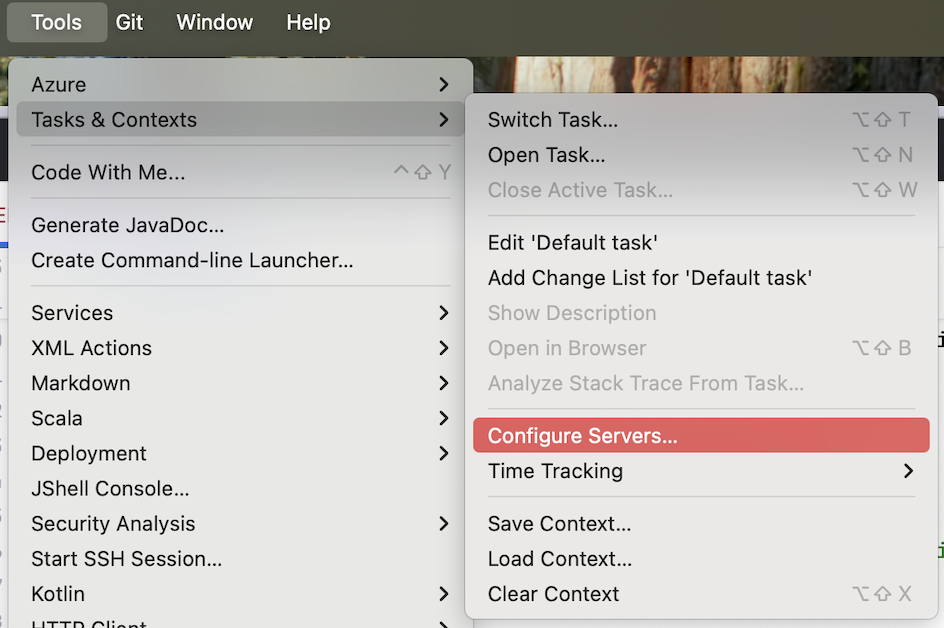
IntelliJ Tasks - GitHub Issue Integration
Configure IntelliJ to use GitHub Issues as a task manager. This allows you to create, view, and manage GitHub issues directly.
TODO
- https://www.warp.dev/pricing
- https://www.cursor.com/
- https://lawand.io/taskbar/
- https://displaybuddy.app/
- https://github.com/sharkdp/vivid
- https://icemenubar.app/
- https://github.com/dmarcotte/easy-move-resize
- https://www.alfredapp.com/
- https://obsidian.md/
- cmd
- https://github.com/junegunn/fzf
Disable .DS_Store files
defaults write com.apple.desktopservices DSDontWriteNetworkStores true
defaults write com.apple.desktopservices DSDontWriteUSBStores -bool true
defaults write com.apple.finder ShowPathbar -bool true - It shows the path on the bottom of Finder when navigating
nested folders